
10 Content Creator Tools for Video, Audio, and Streaming
A stream goes smoothly until the audio file is a mess. A podcaster wraps a good interview, then spends an hour fixing room tone, missed words, and awkward pauses. A short-form creator finishes a strong clip, then loses the afternoon resizing it for three platforms and writing captions that should've been done in one pass. That's the shape of content creator tools, they don't solve everything, they fix the bottleneck that keeps killing the next upload. If you want the repurposing side of the workflow, this roundup pairs well with AI editors for repurposing videos.
1. Streamlabs
Streamlabs is the kind of live-streaming stack that makes sense when you're juggling scenes, chat, overlays, and a reaction-heavy format. It's built on the OBS engine, but it wraps the rough edges with creator-friendly tools across desktop, mobile, console, and browser-based Talk Studio options. The free tier is enough to get moving, and the broader Ultra membership bundles features like multistreaming, clipping, and podcast tools in one place. The catch is simple. Pricing can look different across pages and promotions, so you need to verify the current offer before you commit.
 Streamlabs
Best for live shows that need less juggling
The useful part of Streamlabs is not that it does one thing brilliantly, it's that it keeps a live workflow from splintering. Reactive overlays, Cloudbot, and scene automations help keep a stream moving when the host is also reading chat and reacting in real time. The Sidekick AI co-host is aimed at that same “I need another pair of hands” problem.
A practical setup here is to use Streamlabs for the live session, then move finished clips into a tighter post workflow. That makes sense for reaction channels, live Q&A, and streamers who want to turn one broadcast into more assets without setting up a separate stack for every job.
Practical rule: choose Streamlabs if your biggest problem is live control, not deep post-production.
For music-heavy channels, there's a good reason to keep your licensing habits clean from the start. A creator who streams with borrowed audio and messy permissions is just creating future cleanup. If that's part of your workflow, keep an eye on creative commons music guidance before you build a stream around a track you can't safely reuse.
Website: Streamlabs
2. Riverside
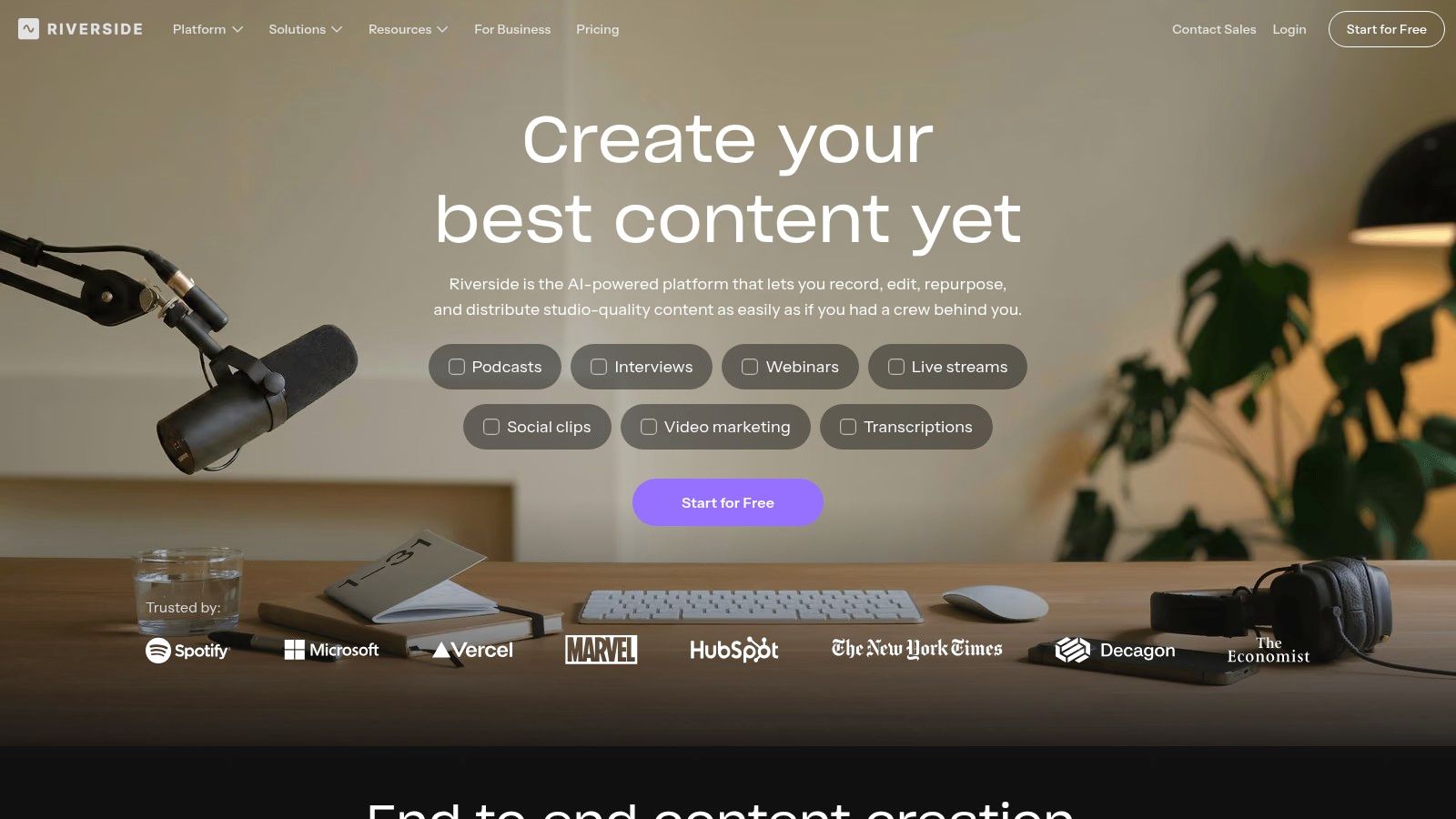
Riverside is built for the annoying part of remote content, when the conversation is strong but the connection is weak. It records separate local-quality audio and video tracks, which is exactly what you want for podcasts, creator interviews, webinars, and collabs where nobody wants to sound like they're trapped in a tunnel. The platform also folds in AI helpers like Magic Clips, Magic Audio, and AI Co-Creator, plus an MCP connection for clipping, editing, and search.
What matters most is that Riverside attacks the quality problem at the recording stage instead of trying to rescue it later. That usually saves more time than fancy cleanup alone, especially when guests join from different setups and nobody has an engineering team on standby.
Strong capture, but watch the plan limits
Riverside's unlimited recording sounds simple until you hit the fine print. Download caps can vary by tier, and some AI features consume credits, so heavy users need to watch usage instead of assuming everything is all-you-can-eat. The interface has also changed over time, and user feedback around that has been mixed, which is a polite way of saying you should expect a learning curve if you're coming from a different recorder.
The upside is obvious. If your current workflow depends on browser calls, Riverside usually feels like a serious upgrade because it protects the source files before editing even begins. That makes it a strong fit for interview shows, course creators, and webinar hosts who need clean material before they cut shorts, trailers, or social snippets.
A lot of creators think of remote recording as a “good enough” step. It isn't. The recording layer either gives you usable tracks or it hands you extra hours of repair work.
Website: Riverside
3. Descript
Descript is the editor for people who think in transcripts first. You can edit video by editing text, which is why it works so well for dialogue-heavy shows, interviews, podcasts, and talking-head clips. The big draws are transcription, filler-word removal, multitrack editing, and Studio Sound, plus Overdub voice cloning on the Pro tier. Paid plans also support up to 4K export.
This is the rare tool that makes rough cuts feel civilized. If you've ever spent too long hunting for one bad sentence in a 45-minute interview, the transcript view is the whole game.
Fast when words matter more than timelines
Descript is strongest when the content lives or dies by what was said. That makes it a natural fit for creators who want to clean up speech, trim dead air, and move fast without getting buried in a traditional timeline. The collaboration side helps too, because role-based seats make it easier to hand off review work without everyone stepping on the same file.
The trade-off is that advanced AI features can be gated by plan-dependent limits or credits, and voice-cloning access depends on the tier. So if you're buying Descript mainly for the futuristic features, check the exact plan before you fall in love with the demo.
The best workflow here is boring in the right way. Record, transcribe, cut the transcript, clean the audio, export. That's the kind of routine that removes friction without forcing you to become a full-time editor.
Good fit: creators who want speed and clarity more than timeline perfection.
Website: Descript
4. Adobe Premiere Pro
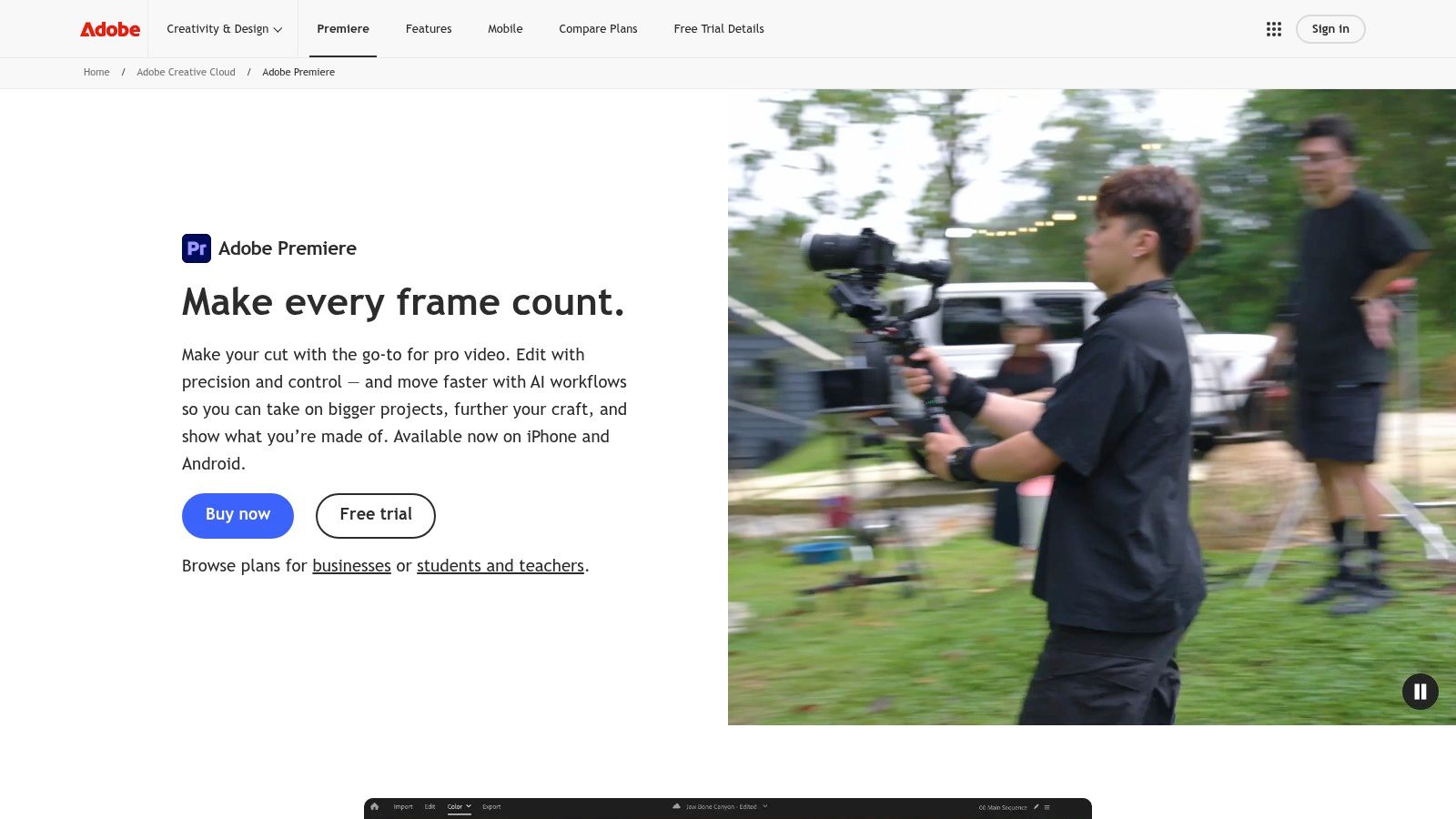
Premiere Pro is the heavyweight here, and that's not a complaint. It's the tool you pick when projects have layers, color work, nested sequences, audio cleanup, captions, and a real need for control. It also integrates with After Effects, Audition, Adobe Express, and Firefly, so it can sit at the center of a serious production stack.
 Adobe Premiere Pro
The pro choice when shortcuts stop helping
Premiere Pro is not the fastest editor to learn, and that's part of the deal. The upside is depth. Once your workflow includes multiple camera angles, longer edits, branding layers, or higher-stakes deliverables, the control starts paying for itself.
It also scales well for creators who live in more than one format. A short social cut can sit beside a long-form episode or broadcast-style project without forcing you into a toy workflow. That flexibility is why professionals keep coming back to it even when simpler editors are easier to open on a Monday morning.
Practical rule: use Premiere Pro when the edit itself is the product, not just the wrapper around it.
The cost side is where creators should stay alert. If you need multiple Adobe apps to finish the job, the subscription stack can get expensive fast. That's fine if the workflow is earning its keep, but it's a waste if you only use half the tools.
For creators building video around music, transitions, and visual polish, the editing stack often needs to sit beside production planning. If that's your lane, it's worth pairing your video workflow with music video AI ideas so you're not improvising every cut from scratch.
Website: Adobe Premiere Pro
5. CapCut
CapCut thrives in the part of the workflow where speed matters more than ceremony. It runs across web, desktop, and mobile, and that makes it one of the easiest tools to use when a clip starts on your phone and ends on your laptop. Its auto-captions, beat-sync, AI effects, and templates are aimed squarely at social-ready videos for TikTok, YouTube Shorts, and similar formats.
 CapCut
Built for quick turns, not deep finishing
CapCut's best feature is momentum. You can move from raw clip to publishable short without feeling like you need a cinema degree to survive the interface. The paid tiers add stock assets, 1 TB of cloud storage, and team features like brand kits and workspaces on the Teams plan.
The trade-off is consistency. Pricing and feature access can vary by region and device, and the membership structure can look different across platforms. That matters if you switch between desktop and mobile a lot, because the thing you saw on one device may not be exactly what you get on another.
This is the editor for creators who want a repeatable social workflow with low friction. It's especially handy for lyric snippets, performance clips, and anything that needs captions and motion fast. If you're editing one-off polished projects, it can feel a little template-heavy. If you're pumping out frequent short-form posts, that same structure becomes a strength.
Website: CapCut
6. Opus Clip
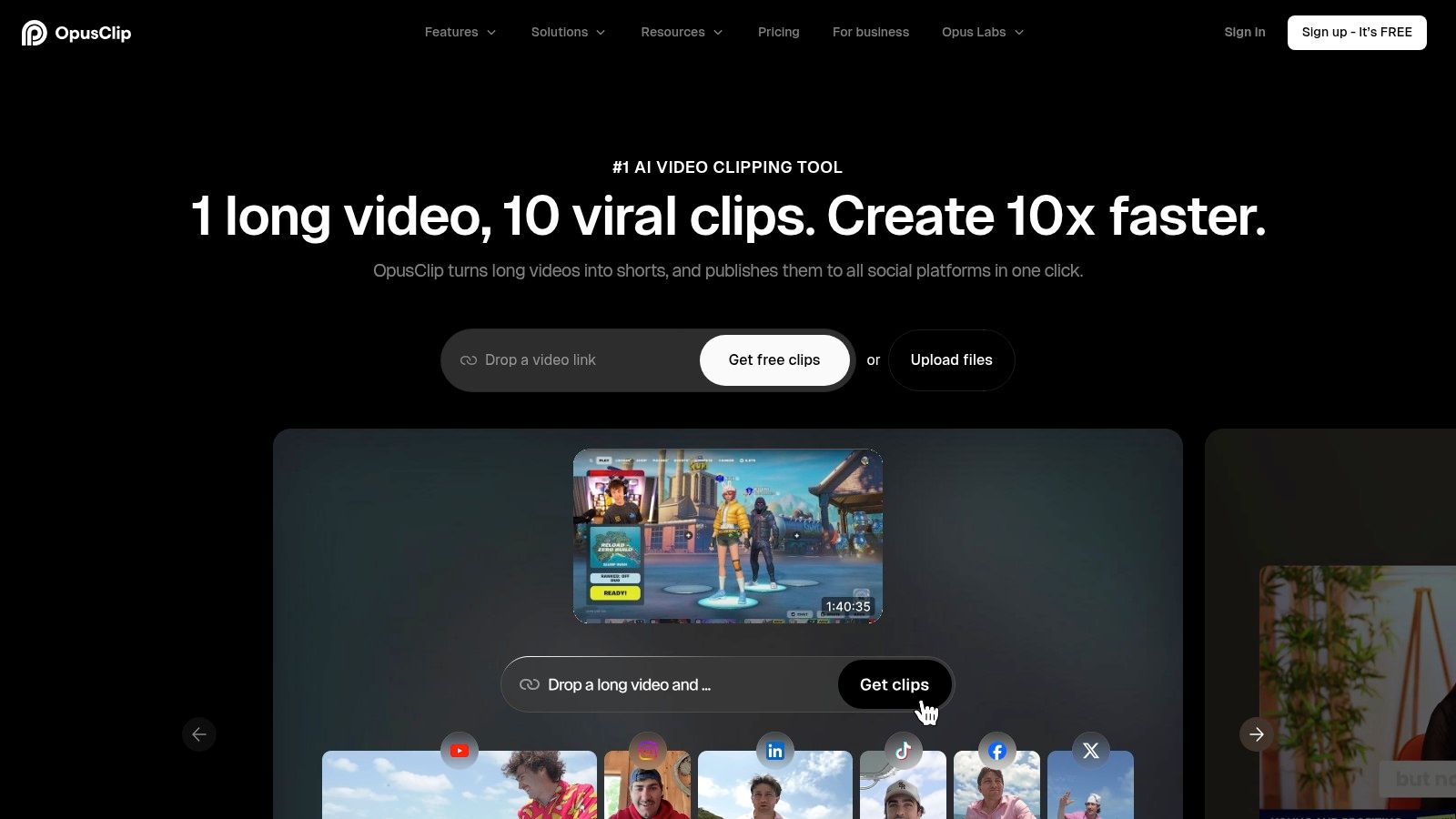
Opus Clip is the repurposing tool for people sitting on long videos they know could become ten smaller ones. It imports from sources like YouTube, Zoom, and Drive, then identifies moments worth turning into short-form clips. Its Virality Score, captions in 20+ languages, multi-aspect outputs, AI B-roll, speech cleanup, dubbing, and scheduling all point in the same direction, faster distribution.
turn webinar recordings into TikTok clips
Useful when the source footage is already good
Opus Clip doesn't replace judgment. It just gets you to the first set of clips much faster. That's a big deal for webinar hosts, coaches, podcast teams, and anyone who records long-form material with the hope that social will do the rest.
The credits model is the biggest planning issue. Heavy users may need top-ups, and the free plan is limited with a watermark. That means it's best treated as a production accelerator, not a forever-free replacement for editing.
One thing I like about this category is that it pushes teams to think in assets, not episodes. A single recording can become a main video, a teaser, a quote clip, and a language-localized version. That's efficient, but only if you've got a consistent way to review and publish the output.
Good fit: teams that already record long videos and need a faster path to Shorts, Reels, and TikTok.
Website: Opus Clip
7. Canva
Canva is the design tool that keeps showing up because it solves the part of creator work people underestimate, the visual wrapper. Thumbnails, lyric cards, channel banners, social posts, and promo graphics all live here comfortably. Its template library, brand kits, scheduler, ad insights, Canva AI 2.0, and Magic Layers make it especially handy for creators who want decent-looking assets without building a design department.
 Canva
Best for quick visuals that keep the machine moving
Canva wins on accessibility. A creator can make a thumbnail, a promo graphic, and a social post without learning full-blown layout software. That's why it's so common in workflows that need speed, consistency, and a decent-looking result by tonight.
The downside is that its video editing is still basic compared with dedicated editors. Some AI uses are also gated by plan or AI Pass, so the shiny stuff may not be fully available on the tier you first click.
The practical move is to keep Canva as your visual production layer, not your everything layer. Use it for brand consistency and fast assets, then hand the actual video heavy lifting to a proper editor when the project needs more control. That split keeps the workflow sane.
Website: Canva
8. Splice
Splice is the sample and plugin library that makes sense when the creator is also the producer. It offers a catalog of more than 3 million sounds, credits for commercial sample licensing, rent-to-own plugins, and integrations with DAWs like Pro Tools, Studio One, and Ableton. That's a strong fit for beatmakers who want to move quickly without losing legal clarity around sample use.
 Splice
Good sound discovery, but keep an eye on credits
Splice shines when you need inspiration fast. The searchable catalog lets producers dig through sounds without pulling themselves out of the session flow. That matters because momentum is half the job in beat-making.
The cost trade-off is the credit system. It can turn a simple sample hunt into extra spending if you're not paying attention. Rent-to-own plugin pricing also varies, so the value depends on what you use, not on the idea of having more tools installed.
If your workflow already moves through a DAW, Splice feels natural. It's less useful if you're just browsing sounds for fun and never finish tracks. The catalog is huge, but huge libraries can become procrastination machines if you don't have a clear session goal.
Website: Splice
9. BandLab
BandLab is the practical answer when you want a cloud DAW that doesn't punish you for working on multiple devices. It runs on web, iOS, and Android, and it includes AI Mastering, Voice Cleaner, and AutoMix AI. The Pro and Max memberships add creator tools and artist services, including distribution, which makes it useful for creators who want to make and release music in one ecosystem.
Strong free creation flow with a release path
The appeal here is obvious. You can sketch ideas on mobile, refine them on desktop, and keep moving without exporting files between half a dozen apps. That lowers the friction that usually kills song ideas before they're finished.
The trade-off is that advanced production may still need external plugins or a more specialized DAW. Membership tiers and limits also need a close look, because the value changes depending on how much you use the included services.
BandLab is especially good for creators who are still building a catalog and want a smooth, low-friction way to turn ideas into finished tracks. If your music workflow is already sprawling, it can feel lighter than the classic desktop DAW stack, which is sometimes exactly what you want.
Website: BandLab
10. DissTrack AI
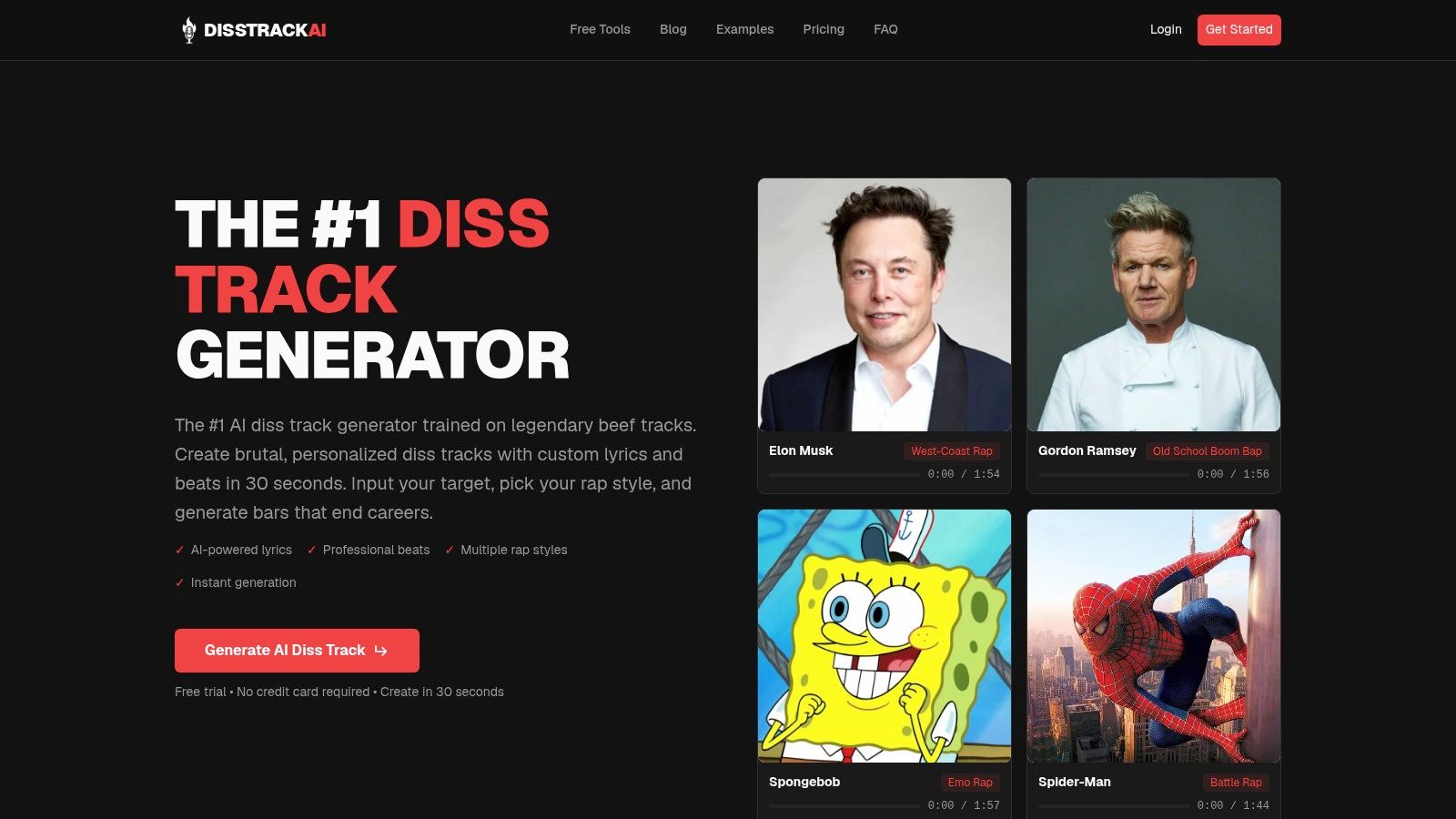
DissTrack AI fits the creator workflow better than it first looks. It turns a target's name, relationship, and inside jokes into personalized diss-track lyrics in seconds, which makes it useful for rappers, meme pages, roast videos, and streamers who need fast material with some bite. The platform says it's trained on thousands of battle-rap and diss tracks, and it offers styles like West Coast, Old School Boom Bap, Trap, Battle Rap, Drill, Emo Rap, and UK Grime. Users can also choose tone and savagery level, then edit or regenerate structured verses.
The value is creative compression. Instead of starting from a blank page, users get bars, punchlines, and rhyme schemes to work from. That makes it less of a gimmick and more of a writer's-block tool for anyone building a roast clip, battle verse, or funny social post.
Useful for speed, with clear caveats
The pricing on the site is straightforward, with a free plan for one track, Pro at $9.99/month for 15 tracks, and Creator at $29.99/month for 100 tracks. The paid plans list commercial licensing, and the site says users own their generated lyrics. It also says generations stay private unless shared, which matters if you do not want half-finished material floating around by default.
There is one warning sign to check before paying. The marketing mentions beats and recorded tracks, but the FAQ says audio generation is not available yet. That mismatch is worth checking against your own use case, because the homepage promise and the current product may not line up.
The tool also makes self-reported claims about training and usage, but the material provided does not include independent reviews, named testimonials, or awards. So the practical read is simple. It looks purpose-built, but you should test the current output before treating it as a finished production tool.
Website: DissTrack AI
Top 10 Content Creator Tools: Feature Comparison
| Tool | Core Use | Standout Features | Best For | Pricing & Value | Diss-Track Relevance |
|---|---|---|---|---|---|
| Streamlabs | Live streaming | ✨ Multistreaming, overlays, AI co-host | 👥 Streamers and live creators | 💰 Free tier; Ultra pricing varies | ★ Useful for performing or reacting to a track |
| Riverside | Remote recording | ✨ Separate local audio/video, AI clips and audio tools | 👥 Podcasters and interviewers | 💰 Tier limits and AI credits apply | ★ Record a diss-track performance or reaction |
| Descript | Audio and video editing | ✨ Transcript-based editing, filler-word removal, voice tools | 👥 Podcast and dialogue-heavy video creators | 💰 AI features and limits depend on plan | ★ Edit a recorded track or its video |
| Adobe Premiere Pro | Professional video editing | ✨ Advanced timeline, color, audio, and Adobe app integrations | 👥 Video professionals and advanced creators | 💰 Subscription; costs can add up with multiple apps | ★ Create polished diss-track videos |
| CapCut | Social video editing | ✨ Templates, auto-captions, beat-sync, mobile and desktop tools | 👥 Short-form video creators | 💰 Strong free tier; pricing varies by region and platform | ★ Turn lyrics or performances into social clips |
| Opus Clip | Long-video repurposing | ✨ AI highlights, captions, reframing, scheduler | 👥 Creators repurposing long recordings | 💰 Free plan limited; paid plans use credits | ★ Make short clips from a recorded performance |
| Canva | Design and promotional content | ✨ Templates, brand tools, AI design features, scheduler | 👥 Creators making thumbnails and social assets | 💰 Free and paid options; some AI tools are plan-gated | ★ Create artwork and promo graphics for a track |
| Splice | Music samples and plugins | ✨ 3M+ sounds, commercial-use licensing, DAW integrations | 👥 Producers and beatmakers | 💰 Sample credits and plugin costs may add up | ★ Source sounds for a backing instrumental |
| BandLab | Cloud-based music creation | ✨ Free DAW, AI mastering, voice cleanup, distribution | 👥 Musicians creating and releasing music | 💰 Free tools; optional Pro and Max memberships | ★ Record and produce a track |
| 🏆 DissTrack AI | Personalized diss-track lyrics | ✨ Custom details, rap styles, adjustable savagery, editable verses | 👥 Rappers, creators, and friend groups | 💰 Free for 1 track; Pro $9.99/month; Creator $29.99/month | 🏆 Best fit for generating custom diss-track lyrics; paid plans list commercial licensing |
Build a Stack That Fits Your Next Upload
The smartest way to buy content creator tools is to start with the bottleneck that hurts most. If your live show falls apart under pressure, start with Streamlabs. If your remote interviews sound thin, start with Riverside. If your edits take forever, Descript or Premiere Pro will probably give you the biggest relief. If your clips need social packaging, CapCut, Opus Clip, and Canva are the obvious helpers. If your music workflow is the problem, Splice, BandLab, or DissTrack AI fit that lane better than a general-purpose editor.
Don't stack tools just because they're popular. Stack them because one step in your workflow keeps stalling. A creator who records, edits, designs, and publishes can easily collect too many subscriptions and still feel stuck, so it pays to keep the system lean until a real gap appears.
Test free tiers against one real project, not a fake sandbox task. Push the tool through your actual workflow, then watch where it slows down, where credits disappear, and where exports or features hit a wall. That tells you more than a shiny demo ever will.
Review current pricing on each vendor's site before you buy, because plans change and feature bundles shift. That matters most with tools that use credits, cross-device memberships, or tiered AI features. The goal isn't to own every platform. It's to build a stack that gets your next upload finished faster and with less drama.
If you want a fast, purpose-built way to turn roast ideas into structured bars, DissTrack AI is worth a look. It helps creators make personalized diss-track lyrics for videos, memes, and streams without staring at a blank page. Visit DissTrack AI and see whether it fits the way you build content.