DAW for Live Performance: A 10-Point Stage Checklist
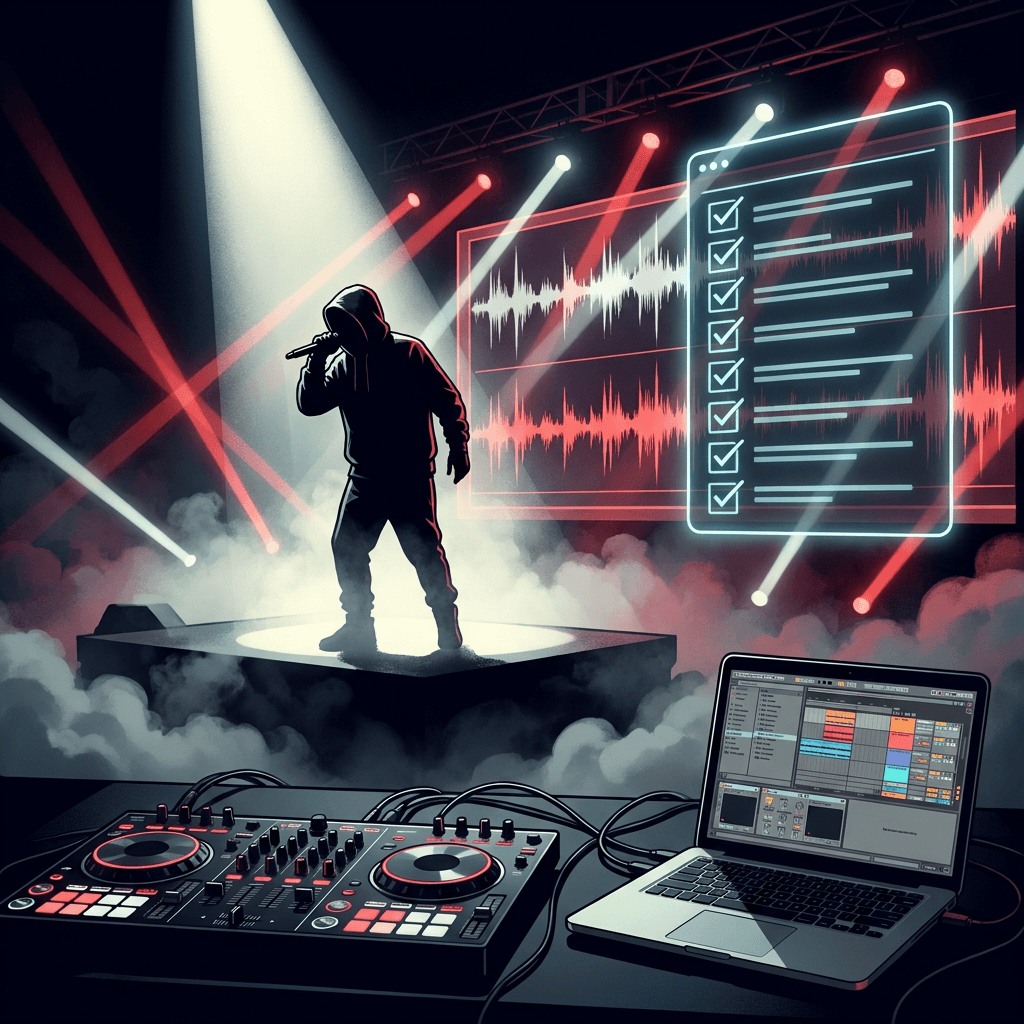
The lights drop, the room starts humming, and your set is sitting there on a laptop like a live grenade. Maybe it's backing tracks, maybe it's vocal FX, maybe it's a full scene-based show that has to keep moving even if a plugin decides to act possessed. That's the DAW for live performance test, not how pretty the interface looks on a promo page, but whether the thing stays calm when your hands are shaking and the crowd is already yelling for the first song.
The good news is that live DAW choices are clearer than the internet makes them sound. Berklee Online points to Ableton Live and Digital Performer for live performance, while also calling out DAWs for sequencing and MIDI programming on stage, which is a pretty accurate way to think about the job, not studio polish, but show control (Berklee Online comparison of DAWs). MusicPulse's 2025 survey proxy also shows why this conversation keeps circling back to a few names, Pro Tools still dominates main DAW usage at 37.2%, while Logic Pro sits at 12.6%, Studio One at 8.4%, REAPER at 7.4%, and Ableton Live at 5.9% (MusicPulse 2026 DAW ranking analysis).
1. Ableton Live The Industry Standard
 Ableton Live: The Industry Standard
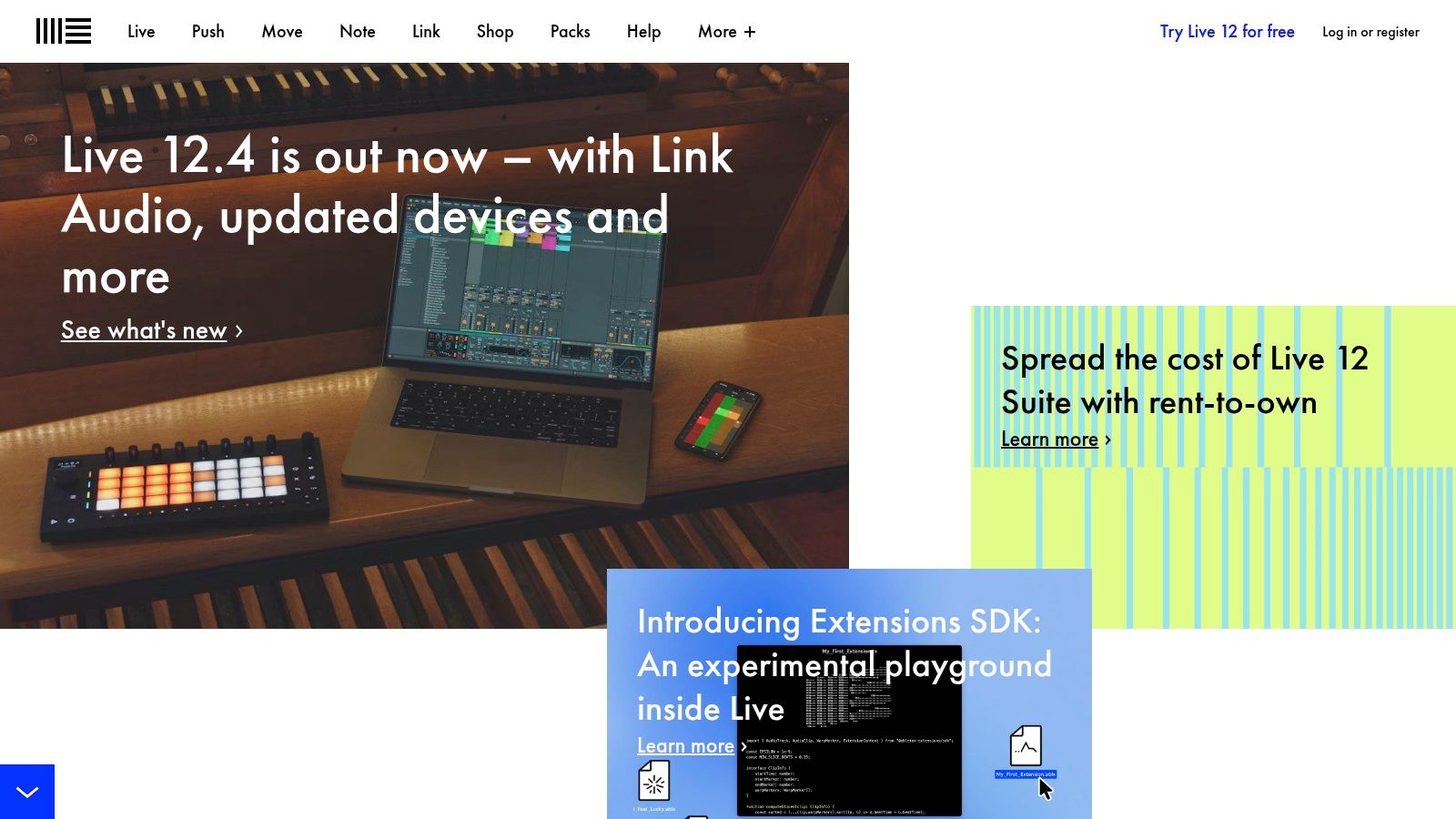
A show can fall apart fast when the software expects you to behave like a studio engineer and the crowd expects you to react like a band. Ableton Live earns its reputation because it was built for that gap. Session View lets you launch clips, trigger scenes, stretch a breakdown, and recover when the set changes mid-song without dragging the whole performance into a linear timeline. The official platform page presents that clip-first workflow as part of the product's core identity, and that is why so many performers start there (Ableton Live).
Practical rule: If the set depends on launching parts in real time, build around scenes instead of a linear arrangement. A timeline works for fixed playback, but it gets in the way once the crowd, the band, or the singer decides the song needs more room.
The live advantages show up the moment the rig gets complicated. Ableton Link keeps multiple devices locked together over Wi-Fi, Max for Live lets you shape custom show control, and the hardware around Push, APC, and Launchpad is still deeper than what most rigs can match. That matters onstage, because gear breaks less often when it is common, documented, and built to cooperate with the software instead of fighting it.
There is a trade-off, and performers feel it quickly. Large sets can chew through CPU headroom fast, especially when you pile instruments, effects, and heavy warping into one project. Ableton is the standard because it holds up under pressure, but it rewards discipline, not sloppy patchwork. If you want to sketch parts before rehearsal and turn them into a live-friendly set later, the beat-building workflow in this beat creation guide fits the way Live expects you to prep.
2. Bitwig Studio The Modular Powerhouse
Bitwig is the choice for players who want the set to feel alive instead of pre-baked. It keeps the clip-launching logic that live performers already understand, but then adds The Grid, where modulation, synthesis, and effects can evolve during the performance instead of sitting there like frozen studio furniture. That makes it especially strong for electronic acts that want movement, not just playback.
3. Logic Pro and MainStage The Apple Ecosystem Duo
 Logic Pro & MainStage: The Apple Ecosystem Duo
Apple's live answer is really two tools wearing one jacket. Logic Pro gives Mac users Live Loops, a scene-based grid inside a serious production environment, while MainStage strips the experience down for stage use and keeps the focus on patch changes, performance views, and controlled routing. The official Logic page makes the pairing easy to understand, and it's one of the cleaner paths for keyboard players and vocalists who already live in the Apple ecosystem (Logic Pro).
Logic Pro's appeal is obvious if you want studio and stage to share the same project DNA. You can build sounds, program parts, and then move toward live triggering without exporting everything into a separate universe. MainStage, meanwhile, is the more obvious stage tool, especially when the job is to switch patches, bring in backing layers, and keep the interface from becoming a science project.
The big downside is just as obvious. It's Mac only, so once you commit, you're in the Apple lane whether you love that lane or not. Also, Live Loops is still less mature than Ableton's Session View, so performers who want the most established clip-launching language will feel that gap quickly. For many Mac rigs, though, the combination is enough, especially when the goal is patch-based live playing rather than full-on clip warfare.
4. REAPER The Ultra-Stable Custom Rig
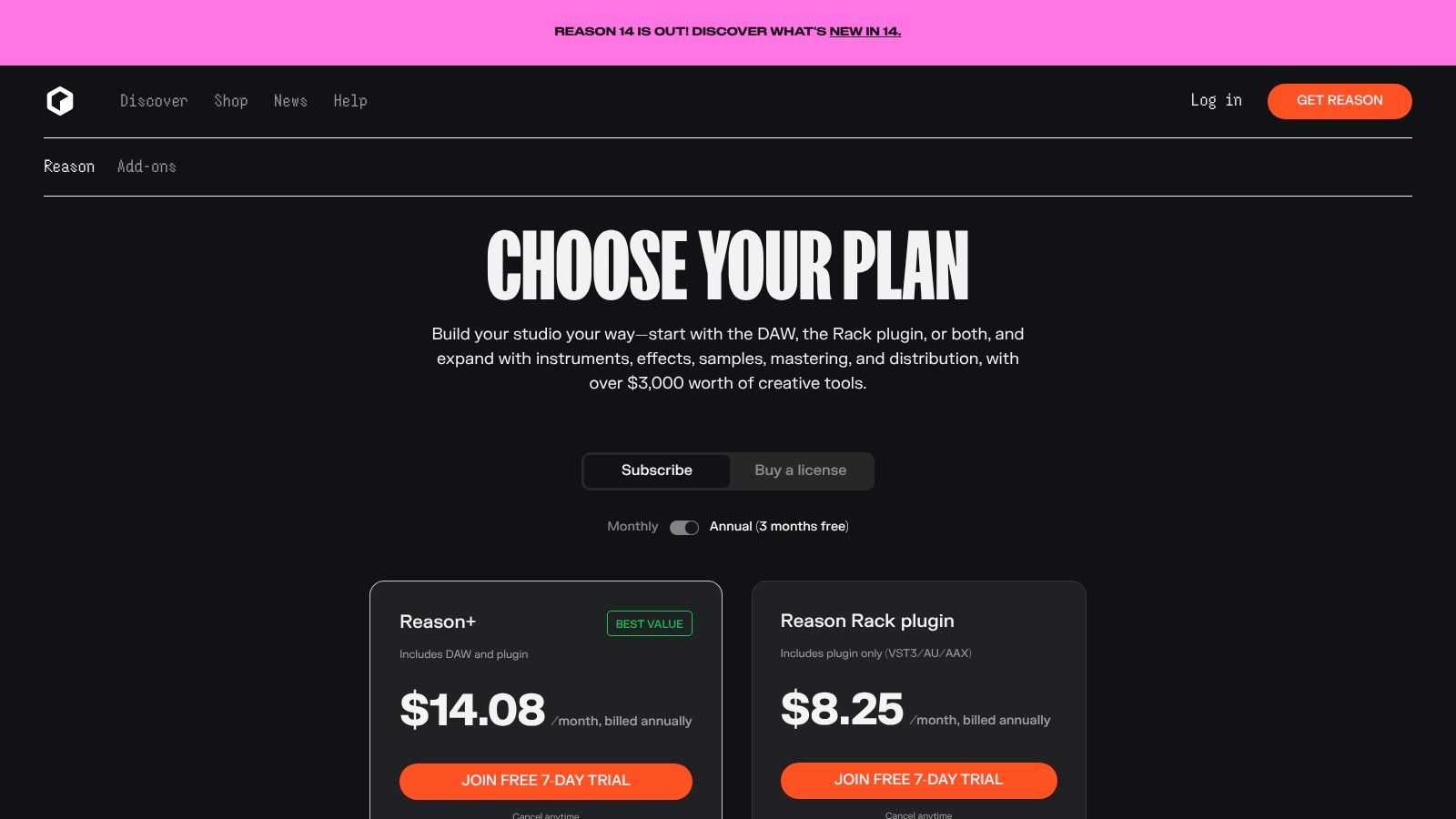
REAPER is what happens when a DAW stops trying to be glamorous and starts trying to survive. It's lightweight, affordable, and brutally customizable, which is exactly what a live tech wants when the set has to run backing tracks, route clicks, and stay out of the way. The official site also backs that no-nonsense positioning with a generous trial and a straightforward license model (REAPER).
Why it works when the set gets ugly
REAPER doesn't hand you a native clip-launching culture the way Ableton does, and that's fine. Its strength is routing, scripting, and efficiency, so if your performance is built around stems, click tracks, vocal chains, or complex output splits, it can be shaped into a very solid stage machine. It can also be run from portable storage, which is handy when the same rig has to move between rehearsal room, club date, and tour bus without drama.
The downside is setup time. REAPER asks you to build the live workflow yourself, and that's not a small ask if you're under deadline. Once it's done, though, it tends to stay done. That's why it's such a good fit for performers who care more about stability and routing depth than visual flair or trendy workflows.
5. PreSonus Studio One The Band Leader
 PreSonus Studio One: The Band Leader
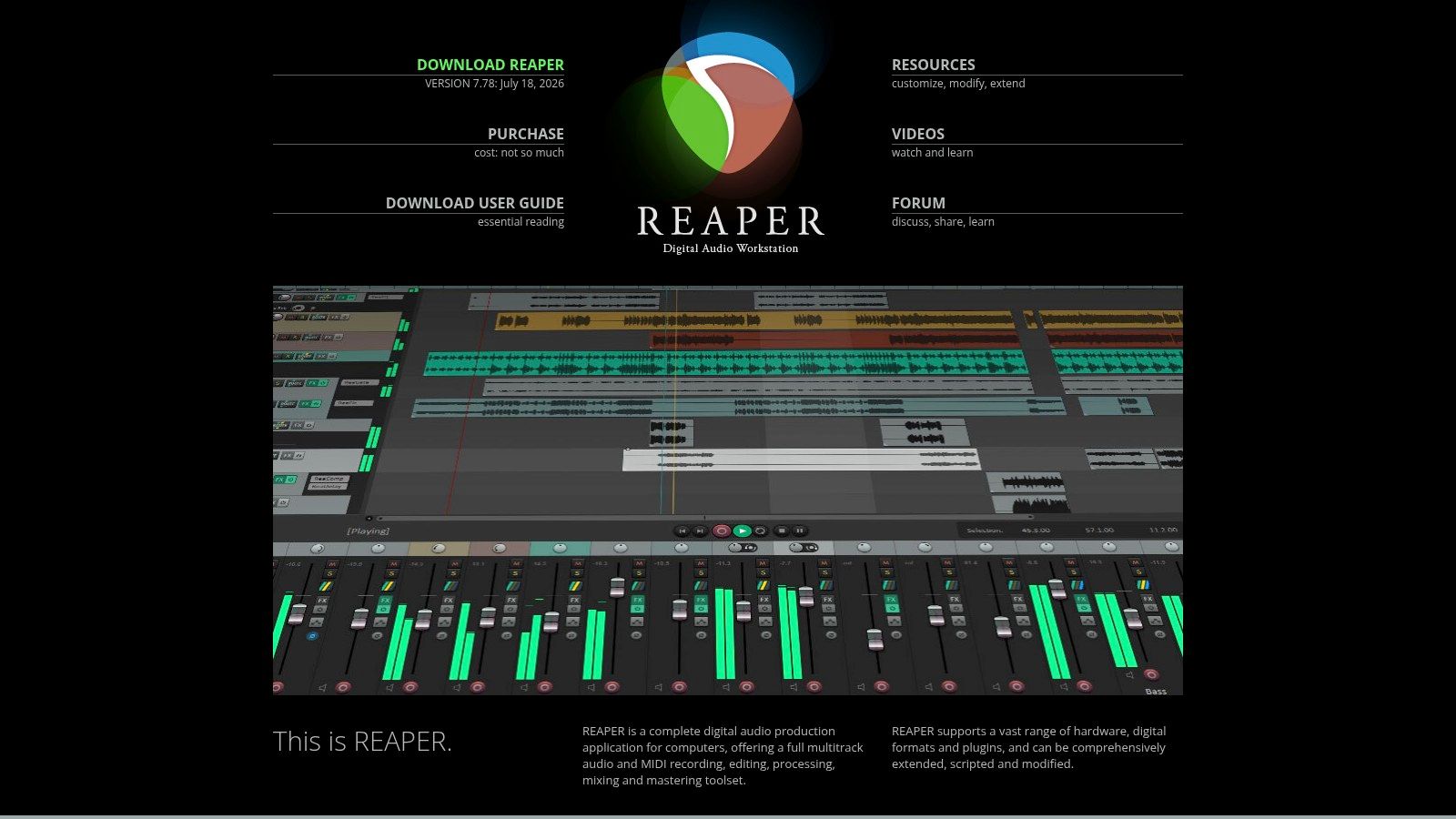
Studio One makes a very specific promise, it wants to run the band, not just the laptop. Its Show Page is built for live setlists, backing tracks, patch changes, and organized performance flow, which is exactly the kind of structure a touring band needs when the songs are tightly arranged and nobody wants to guess what comes next. The product page makes that stage-first workflow pretty clear (Studio One Professional).
That makes Studio One strong for structured sets. If the show is scripted, the songs are mapped, and the backing elements need to stay in order, Show Page gives you a clean place to keep everything. It also helps that it pulls assets from studio projects, so the same song can move from production to stage without as much file juggling as some other platforms demand.
The limitation is the same one that helps it stay focused. It is not built for spontaneous clip-jamming like Ableton, and the Show Page lives in the Professional edition, which matters when you're budgeting a rig, not fantasizing about one. For bands, theater sets, and artists who want a tidy bridge between the studio and the stage, it lands in a very useful middle ground.
6. Tame Latency and Avoid Crashes
Latency is the tiny delay that turns a good performance into a miserable one if you ignore it. You hear it most when you play a soft synth, sing through monitoring, or trigger something from pads and the response feels like it arrived by bus. On stage, the goal is simple, keep the buffer low enough to feel immediate, but not so low that the computer starts coughing up clicks and pops.
The setup habits that save shows
- Use a real audio interface: Native drivers matter. ASIO on Windows and Core Audio on Mac are the baseline, not the luxury tier.
- Trim the buffer carefully: Lower it until the set feels responsive, then stop before the system gets flaky.
- Freeze heavy parts: Render CPU-hungry instruments and effects to audio when the arrangement is locked.
- Lock the performance machine down: Close extra apps, kill Wi-Fi and Bluetooth, and use a dedicated user profile for the show.
Practical rule: If you need more than your machine can safely handle at a low buffer, don't argue with physics. Print the part to audio and move on.
This is also where live DAW planning gets honest. A beautiful session means nothing if the show falls apart because a plugin update, a rogue background app, or a loose driver eats the first chorus. Most performers don't lose gigs because they picked the wrong brand, they lose them because they treated the laptop like a studio toy instead of a stage appliance.
7. Choose Your Controller Wisely
 Checklist Item: Choose Your Controller Wisely
A DAW without a controller is just a very expensive way to stare at a screen. The controller is what turns the software into something you can play, and the wrong one makes every move feel like you're hunting for tiny buttons in the dark. If your set is built around clip launches, Ableton Push and Launchpad make sense. If you need hands-on level moves, fader boxes, key controllers, and knob banks can matter just as much as any pad grid.
For mixing duties, a unit with faders, like a Korg nanoKONTROL or Akai MIDIMix, gives you fast ride control that a trackpad never really matches. For performers who need to play melodies or harmonies live, a compact keyboard like an Arturia KeyStep is usually more useful than a giant pad wall. If your hands are already busy on guitar or vocals, the right controller is the one you can hit without looking.
An iPad can carry real weight here when it works as a control surface instead of a distraction. A good place to start is this iPad-for-music resource, because touch control, setlist browsing, and transport access can make a rig easier to trust when the lights go down.
8. Build a Rapper and Vocalist Template
 Checklist Item: Build a Rapper/Vocalist Template
A rapper or vocalist set falls apart fast if the show file is messy. The backing track has to land cleanly every time, the vocal chain has to stay simple, and the ad-lib or hype clip triggers need to sit exactly where your hands can reach them without a search party. At that point, the DAW is doing less studio work and more jobsite work.
Start with one full stereo track at the top if the show can tolerate it. Split stems only when the performance needs that control, because extra lanes sound clever in rehearsal and turn into clutter under pressure. Put ad-libs, hype clips, and short response cues on their own lane, then keep the live vocal input stripped down to the compression, EQ, and reverb you already trust on a bad monitor night.
Keep the template practical. Lyrics, reminders, and cue notes belong in the notes panel or a lightweight plugin, not buried inside a pile of unused windows. A rapper should be able to glance, fire the next line, and keep moving. If the show needs prepped verses cleaned up before you build the file, the how-to-make-a-backing-track workflow is a useful reference because it keeps the arrangement decisions tied to the performance, not the studio fantasy.
9. Build a Solo or Duo Backing Track Template
 Checklist Item: Build a Solo/Duo Backing Track Template
Singer-songwriters and small duos live or die by organization. If the laptop is doing the heavy lifting, the setlist has to be loaded in a way that makes the next move obvious, because no one wants to scroll through a dozen windows while the audience thinks the song is over. Scene-based setups in Ableton or Bitwig fit this beautifully, especially when the whole show is already mapped song by song.
Keep the click on its own output so only the performers hear it, then separate stems like drums, bass, or pads if you need more control on the fly. Leave space for live inputs like guitar or vocal chains, and map one button or footswitch to launch the next scene. That one mapping choice can save a whole lot of awkward hand dancing between songs.
If you're building tracks from scratch, prep pays off more than gear lust. A strong backing-track workflow is less about fancy plug-ins and more about making sure the stems, cues, and transitions already make musical sense before you hit the venue. The step-by-step approach at this backing track guide is a good companion to that process because it keeps the arrangement thinking practical.
10. Master Your MIDI Mapping
 Checklist Item: Master Your MIDI Mapping
MIDI mapping is where most live rigs go from promising to usable. If every knob means something different in every song, the controller turns into a logic puzzle, and logic puzzles are terrible onstage. The smarter move is to map for muscle memory, so your hands know where the important stuff lives without needing a refresh between songs.
Keep the layout boring on purpose
- Global controls first: Put play, stop, master volume, and a master filter where your hand can hit them fast.
- Repeat the same logic per track: If knob one is always filter and knob two is always delay send, the rig stops feeling random.
- Color-code the pads: Use visual grouping for intros, verses, drops, and exits so you can spot the next move instantly.
- Map less than you think you need: The few controls you use constantly matter more than a giant grid of forgotten options.
A good mapping scheme should feel almost rude in its simplicity. That's a compliment. The best rigs don't ask the player to remember 40 custom assignments, they ask for the same 8 or 10 useful moves every night and reward repetition with speed.
DAWs for Live Performance, 10-Point Comparison
| Tool / Checklist | Core features | Live UX ★ | Value 💰 | Best for 👥 | Standout ✨/🏆 |
|---|---|---|---|---|---|
| Ableton Live: The Industry Standard | Session View; advanced warping; Ableton Link; Max for Live | ★★★★★ | 💰 Premium (Suite pricey) | 👥 Live performers, DJs, clip-based artists | 🏆 Session View & hardware ecosystem; ✨Max for Live |
| Bitwig Studio: The Modular Powerhouse | Clip Launcher + Arranger; The Grid; MPE; sandboxed plugins | ★★★★ | 💰 Great value; frequent updates | 👥 Sound designers & experimental performers | ✨The Grid modular engine; 🏆Deep modulation |
| Logic Pro & MainStage: The Apple Ecosystem Duo | Live Loops; MainStage low-latency; massive library; Logic Remote | ★★★★ | 💰 One-time purchase (Mac only) | 👥 Mac users, keyboardists, singer-producers | 🏆Apple optimization; ✨Seamless ecosystem |
| REAPER: The Ultra-Stable Custom Rig | Extremely low CPU use; deep routing; ReaScript; portable | ★★★ | 💰 Very affordable; long trial | 👥 Tinkerers, tech-savvy performers | ✨Deep customization; 🏆Stability & efficiency |
| PreSonus Studio One: The Band Leader | Show Page setlist; on-the-fly arranging; remote app; studio-stage sync | ★★★★ | 💰 Mid (Show Page in Pro) | 👥 Bands & structured set performers | ✨Show Page for setlists; 🏆Band-focused workflow |
| Checklist: Tame Latency & Avoid Crashes | Buffer tuning; quality interface; freeze tracks; system optimization | ★★★★★ | 💰 Free best practices | 👥 All live performers & engineers | ✨Practical latency fixes; 🏆Essential reliability tips |
| Checklist: Choose Your Controller Wisely | Clip grid, faders, keys, assignable knobs; mapping priorities | ★★★★ | 💰 Varies, buy what you need | 👥 Performers who want tactile control | ✨Match controller to workflow; 🏆Improves playability |
| Checklist: Build a Rapper/Vocalist Template | Backing track + stems; ad-libs pad; vocal chain; lyric display | ★★★★★ | 💰 Free template tip | 👥 Rappers & vocalists (DissTrack AI users) | ✨Lyric/notes integration; 🏆Prepares punchlines live |
| Checklist: Build a Solo/Duo Backing Track Template | Scene-per-song workflow; click/stems/live inputs; footswitch mapping | ★★★★ | 💰 Free template tip | 👥 Singer-songwriters & small groups | ✨Scene workflow for setlists; 🏆Smooth transitions |
| Checklist: Master Your MIDI Mapping | Global & per-track maps; color-code pads; map 8–10 core functions | ★★★★ | 💰 Free best practice | 👥 Controller users & live performers | ✨Muscle-memory mappings; 🏆Turns controller into instrument |
Your Show Starts Now
The perfect DAW for live performance is the one that disappears once the set begins. Ableton Live still owns the clip-launching conversation, REAPER still wins on lean stability, Logic Pro and MainStage make sense for Mac-based performers, and Studio One can be the cleanest answer for bands that want a structured show page. Bitwig sits in the wild-card lane for performers who want modulation and motion to be part of the act, not an afterthought.
The bigger lesson is simpler than the gear debates make it sound. Choose the tool that matches the way you perform, then strip the session down until it survives a bad cable, a rushed soundcheck, and a distracted brain. If your show depends on backing tracks, vocal processing, live loops, or scene changes, build one song first and abuse it hard before you trust the full set.
Listen for the failure points. Watch for CPU spikes, messy routing, awkward controller moves, and anything that makes you stop thinking about the audience. When a DAW is right for live work, it feels less like software and more like a stagehand who never complains.
DissTrack AI helps rappers, producers, and performers turn raw ideas into sharp, performance-ready lyrics fast, which is exactly what you want when the pressure's on and the clock is ugly. If you're building a vocal set, testing punchlines, or trying to lock a crowd-grabbing roast into your show, visit DissTrack AI and see how quickly it can spit out material that's ready to edit, stage, and perform.